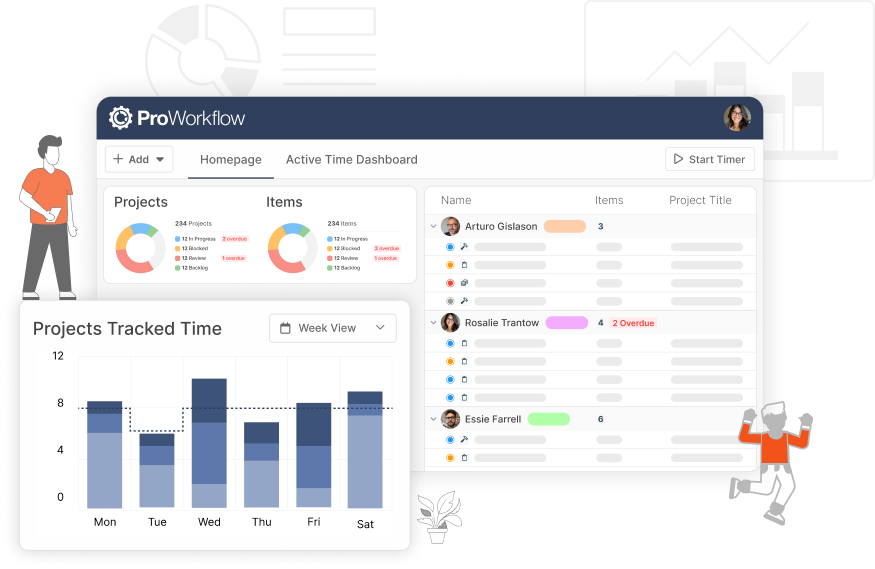
Most agencies do not choose to run projects on email and spreadsheets. It just happens. A brief arrives by email, someone starts a tracker, files go into a shared drive, feedback comes back in a reply-all, and the hours end up in a timesheet that nobody looks at until invoicing. Every tool works on its own. Together, they mean nobody can see where a project really stands without asking three people.
This guide shows how to move that work into one shared workspace, in a sensible order, without stopping the projects you are already running.
The quick answer
Give every type of project information one home, move one live project first, and retire the old spreadsheet on a set date. In practice:
- Map where information lives today: briefs, tasks, conversations, files, hours and budgets.
- Pick one home for each, and agree that anything outside it does not count.
- Start with one live project, not a big-bang migration.
- Turn the way you run projects into a template so every new project starts the same way.
- Move conversations, files and time into the project as the work happens.
- Give each person the view they need: a list, a board or a timeline.
- Switch off the old tracker on a date everyone knows.
What scattered tools really cost
The problem is not any single tool. It is the gaps between them:
| Where it lives now | What goes wrong |
|---|---|
| Briefs in email | Scope is whatever the last person remembers. Changes are buried in threads. |
| Tasks in a spreadsheet | Always slightly out of date. Nobody knows which copy is current. |
| Feedback in reply-alls | New team members cannot see the history. Decisions get lost. |
| Files in a shared drive | Nobody is sure which version the client approved. |
| Hours in a separate timesheet | Logged late, from memory, and never compared with the budget. |
| Budget in the account manager’s head | Overruns are found at invoice time, when it is too late. |
Each gap costs a few minutes a day: hunting for a file, asking for an update, rebuilding a status report. Across a team of ten, that is easily a day a week. It also costs margin, because work that is not visible is not managed.
Step 1: Give every type of information one home
Before you move anything, agree where each kind of information belongs. The rule is simple: if it is not in its home, it does not count.
| Information | Its home in the workspace |
|---|---|
| New work requests and briefs | An intake form that creates the project |
| Tasks, owners and dates | Items in phases on the project |
| Conversations and decisions | Project and task messages |
| Files and approved versions | Attached to the task or project they belong to |
| Hours | Logged against the task they were spent on |
| Budget, cost and margin | Calculated on the project from estimates and time |
Step 2: Start with one live project
Moving every project at once stalls the team and creates a messy half-and-half period. Pick one project that starts soon, involves a few people and has a client who is easy to work with. Run it fully in the workspace for two or three weeks, then fix what was awkward before you move the next one.
Projects already halfway through can stay where they are until they finish, as long as no new work starts in the old system.
Step 3: Turn how you work into a template
Most agencies run the same kinds of projects again and again. Write down the phases and tasks of a typical project, with rough hours for each, and save it as a project template. Every new project then starts with the same structure, the same task names and a budget you can compare against. See how to use project templates.
If new work arrives as a request from a client, an intake form can create the project from that template the moment the client hits submit.
Step 4: Move conversations into the project
This is the step that changes the most, and the one people resist. Start new conversations about a project inside it, as a project message or a message on the task it is about. Everyone on the project sees the same thread, and anyone who joins later can read the history.
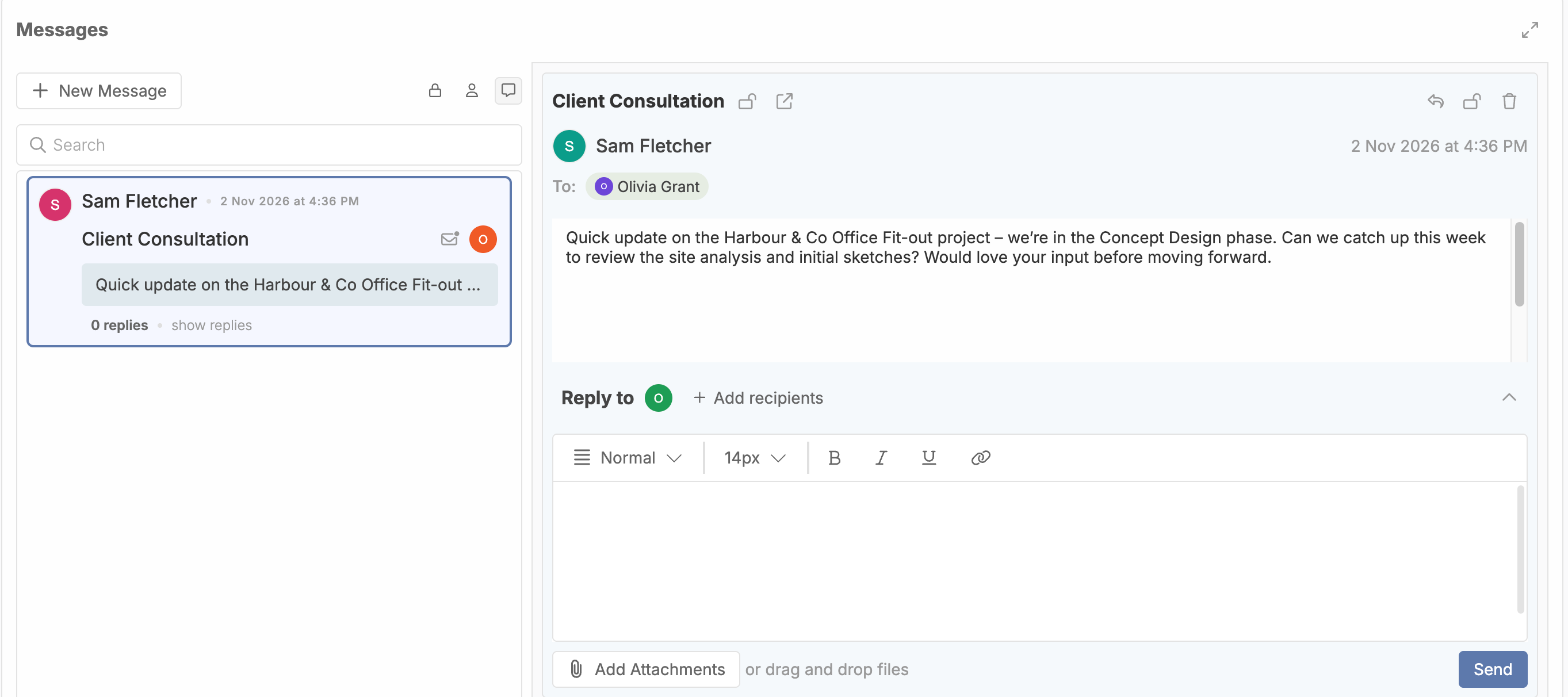
Clients do not need to change how they work. In ProWorkflow, when a client replies to a message by email, the reply is added to the same thread. One thing to know: an email that started outside ProWorkflow cannot be forwarded into a project, so start the conversation in the project.
Step 5: Put files with the work
Attach files to the task they belong to: the brief to the discovery task, the approved homepage design to the design task. That way, the latest approved version sits next to the work, its history and its messages, instead of in a folder called “FINAL v3”.
Step 6: Log time against tasks
Hours logged against the task they were spent on are what make budgets and margins visible. Ask the team to log time daily, or run a timer while they work. Once time is in the same place as tasks, you can see budget vs actual on every project without building a report.
Step 7: Give each person the view they need
One workspace does not mean everyone looks at the same screen. A designer wants their tasks for the week, a project manager wants the timeline, and an owner wants margins across every project. The same data can be shown as:
- A list, for working through tasks and editing details quickly.
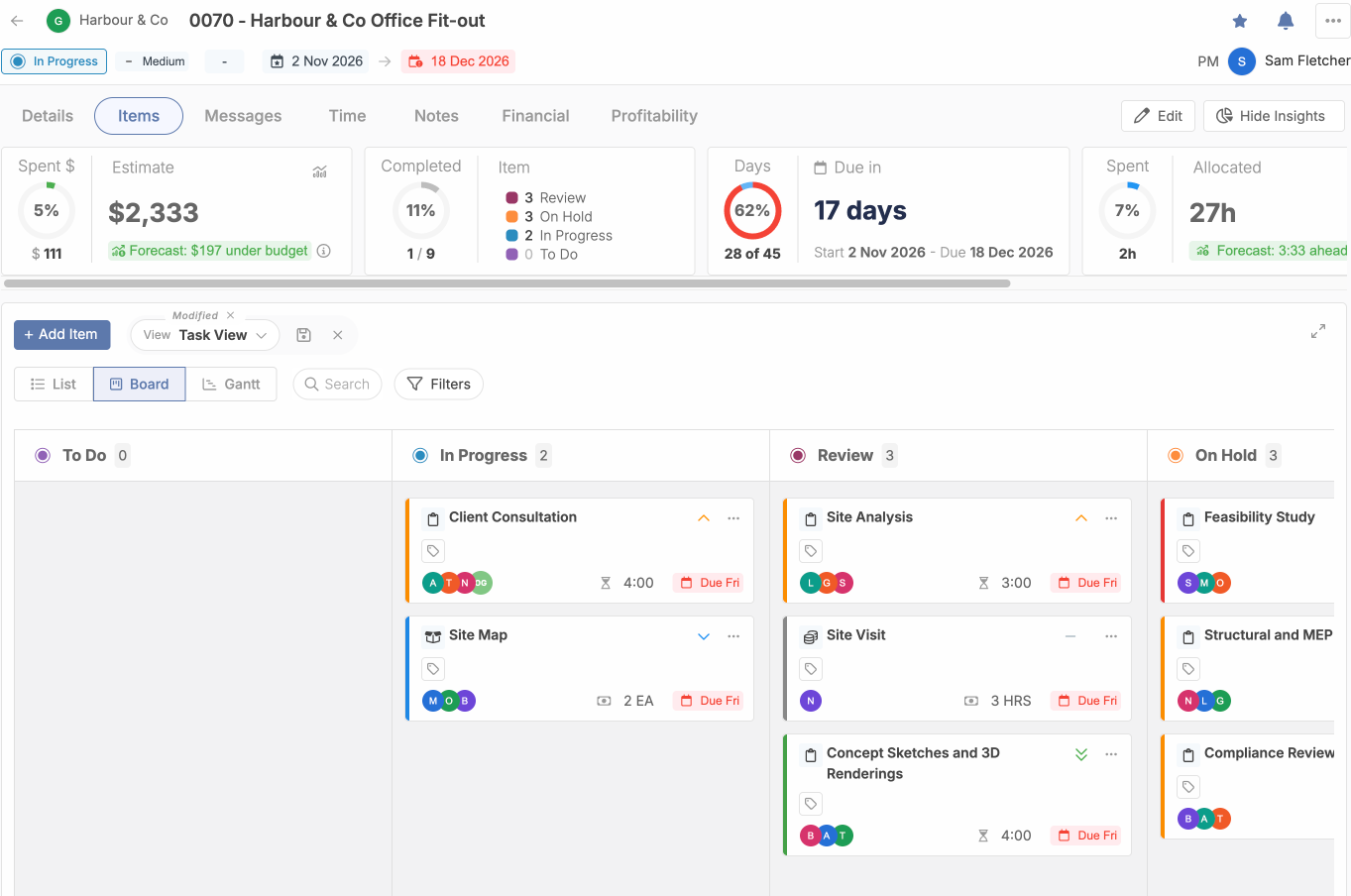
- A board, with a column for each status, for seeing what is in progress, in review or on hold.
- A Gantt chart, for dates, phases and what comes next.
Save the views people use most, so nobody has to rebuild their filters each morning. Use roles and permissions to control what each person can see and do, for example hiding cost rates from staff who do not need them.
Step 8: Switch off the old tracker
Pick a date, tell everyone, and make the old spreadsheet read-only on that day. If it stays editable, people will keep updating it “just in case”, and you will have two sources of truth again.
Habits that make it stick
- Update status where the work is. Move the task to Review when it is ready for review, instead of sending a message to say so.
- Reply in the thread. If a conversation started in the project, keep it there.
- Log time daily. Weekly timesheets from memory are always low.
- Hold the stand-up from the board. If it is not on the board, it does not exist.
- Review margins weekly. Once the data is in one place, it takes minutes. See 10 reports every agency owner should run monthly.
Mistakes to avoid
- Moving everything at once. Start with one project and learn from it.
- Keeping the spreadsheet “just in case”. Two sources of truth are worse than one out-of-date one.
- Too much structure on day one. Start with phases, tasks and owners. Add custom fields and automation later.
- Leaving clients out. Message clients from the project, so their replies land in the right thread.
- Not logging time. Without hours against tasks, you have a to-do list, not a project management system.
One workspace in ProWorkflow
In ProWorkflow, every project has its own Items, Messages, Time, Notes, Financial and Profitability tabs, with insights across the top showing spend against the estimate, progress and days remaining. Tasks can be shown as a List, a Board or a Gantt chart, and you can save the views you use most.
The Messages tab holds every conversation about the project. Send a message to project contacts, clients or staff, add attachments and keep replies in one thread. Messages on a task also appear here, so you can see the whole conversation in one place.
Each task has its own details, time tracked, messages and files, plus a history of its status changes. Read more in the help articles on messaging, list, board and Gantt views and roles and permissions.
FAQ
What is the best way to manage agency projects without email and spreadsheets?
Use one shared workspace where each project holds its tasks, conversations, files, hours and budget. Give each type of information one home, move one live project first, and retire the old tracker on a set date.
How long does it take to move an agency onto a project management tool?
Most agencies can run their first project in it within a week and move all new work within a month. Projects already underway can finish where they started.
Do clients need to log in?
No. Clients can receive and reply to project messages by email, and their replies are added to the thread. You can also give clients their own logins with a role that controls exactly what they can see.
Should we keep using spreadsheets for anything?
For one-off analysis, yes. For tracking live projects, no. Once the workspace is the source of truth, a spreadsheet copy is out of date the moment someone saves it.
How do I get my team to actually use it?
Make it the only place work is tracked, run stand-ups from the board, and reply to updates sent any other way with a link to the project. This is where a project management tool like ProWorkflow helps: tasks, messages, files, time and budgets sit on the same project, so the team has one place to look and you get real data on every project instead of assumptions.