Every project starts with a conversation. Too often that conversation is a string of emails, a phone call nobody wrote down and a brief that turns up half-finished a week later. By the time work starts, the team is guessing at the scope, the deadline is already tight and someone is chasing the client for a logo file.
A good client intake process fixes that before it starts. The client answers the right questions once, in one place, and the project is ready for your team the moment they hit submit.
This guide walks through how to design that process, how to build it with an intake form, and how to make it run itself.
The quick answer
A client intake process is the set of steps that turns a new enquiry into a project your team can start. To set one up:
- List what you need before work can start: scope, deadline, budget, contacts and files.
- Decide whether new work starts automatically or needs approval first.
- Build a single intake form that asks only those questions, with rules that keep answers usable.
- Publish it where clients already are: your website, your emails, your client portal.
- Review what comes in and refine the form every few months.
What a good intake process does
Whatever you sell, a strong intake process does four things:
- Captures everything once. No follow-up emails for the budget, the deadline or the brand files.
- Filters early. Work that is too small, too rushed or out of scope is flagged before anyone spends time on it.
- Routes work to the right people. A website request reaches the web team, not the general inbox.
- Starts the project for you. The project, its tasks and its team are set up without anyone retyping the brief.
Step 1: Decide what you need before work can start
Start with the end in mind. What does your team need to know to start the first task with confidence? For most agencies and consultancies it comes down to this:
| Information | Why it matters |
|---|---|
| Who the client is and who to contact | Someone to send questions and approvals to |
| What type of work it is | Decides the team, the process and the template |
| The goal and a short description | Keeps the scope honest from day one |
| Deadline | Tells you whether you can take it on |
| Budget, even a rough one | Tells you how much work is realistic |
| Existing files: logos, guidelines, copy | Saves a week of chasing |
Then cut anything you would not act on. Every extra question lowers the chance a client finishes the form. If an answer only matters for one type of project, ask it only for that type.
Step 2: Auto-create projects, or review first?
Some work can start the moment it arrives, such as a repeat request from an existing client or an internal job. Other work needs a decision first, such as a new client with a big budget or anything that needs a quote.
| Starts automatically | Reviewed first | |
|---|---|---|
| Best for | Repeat work, internal requests, retainers | New clients, larger jobs, anything quoted |
| What happens on submit | A project is created straight away | A request waits for someone to approve or decline it |
| In ProWorkflow | Project Intake Form | Custom Request form |
Many teams use both: an automatic form for existing clients, and a request form on the website for new enquiries.
Step 3: Build the intake form
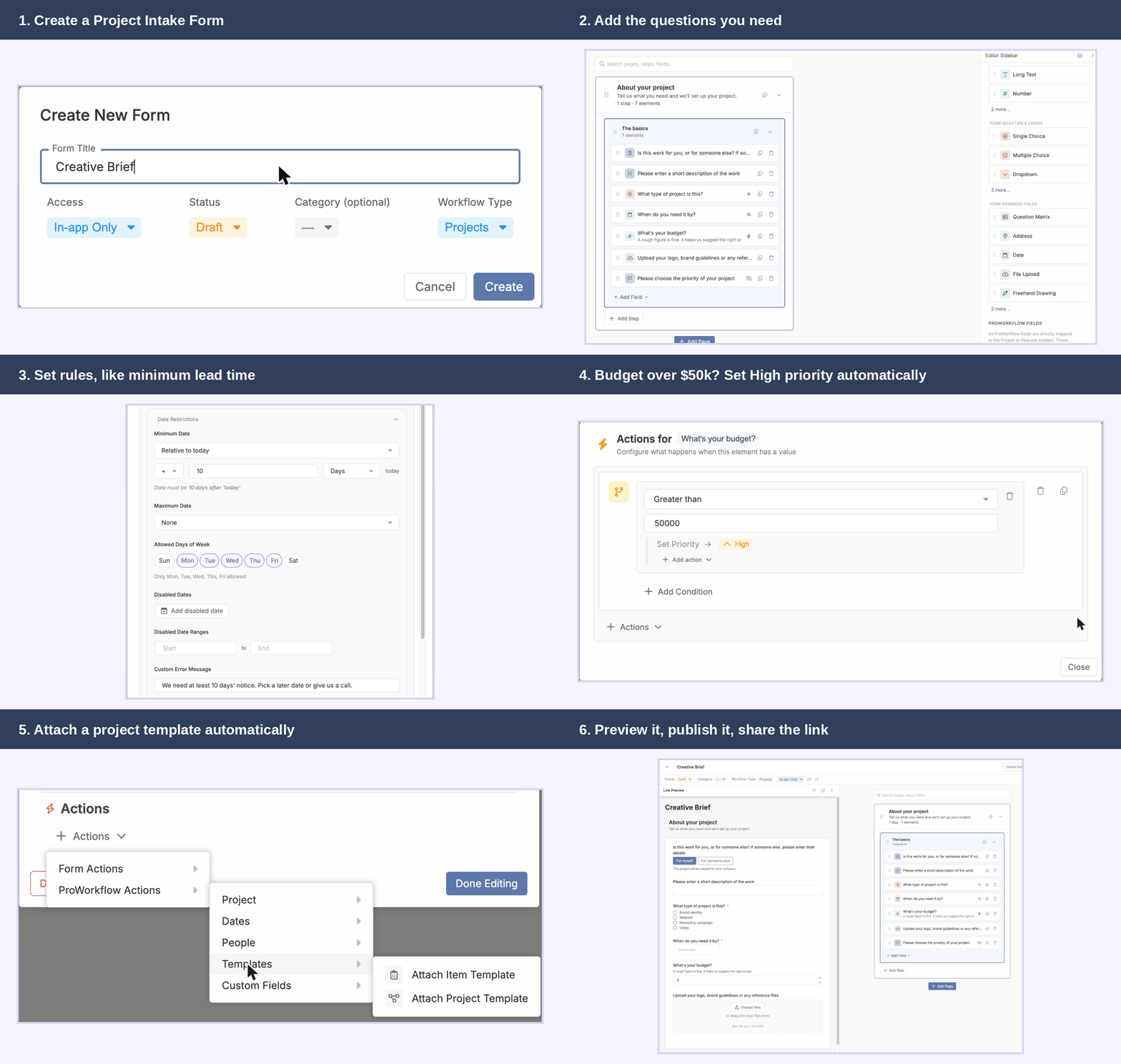
Here is how that looks in ProWorkflow, using a Creative Brief form for a design agency as the example. You will find the builder in Settings > Custom Form Builder.
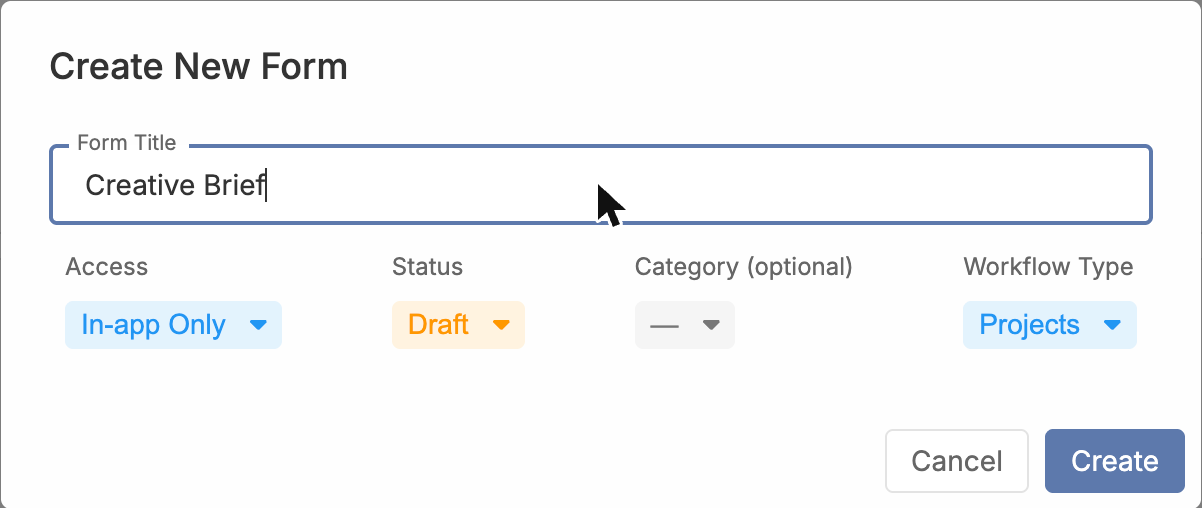
Create the form
Choose the Projects Intake Form tab, click Create Form and give it a name. Leave it as a draft while you build it.
Add only the questions you need
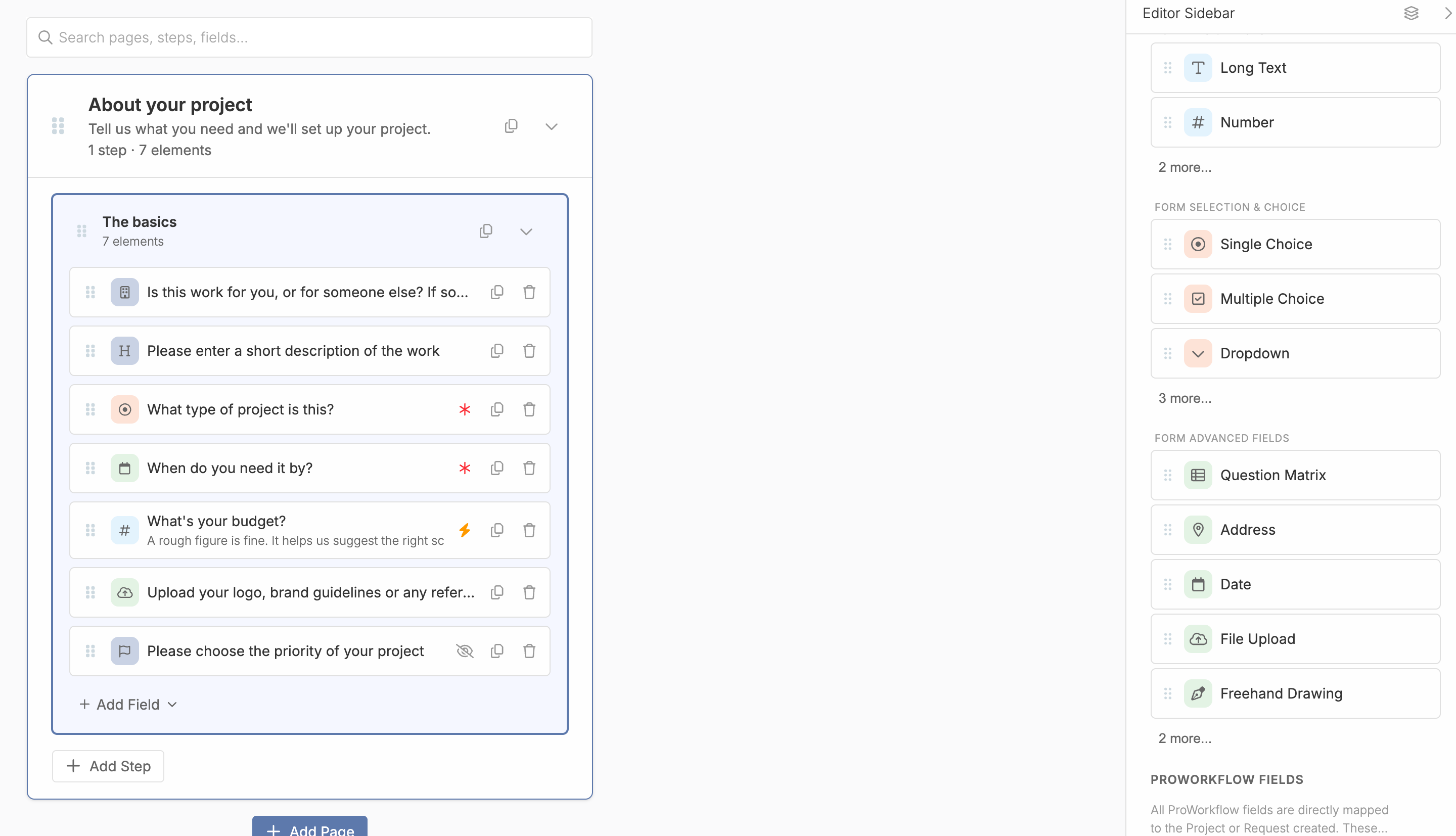
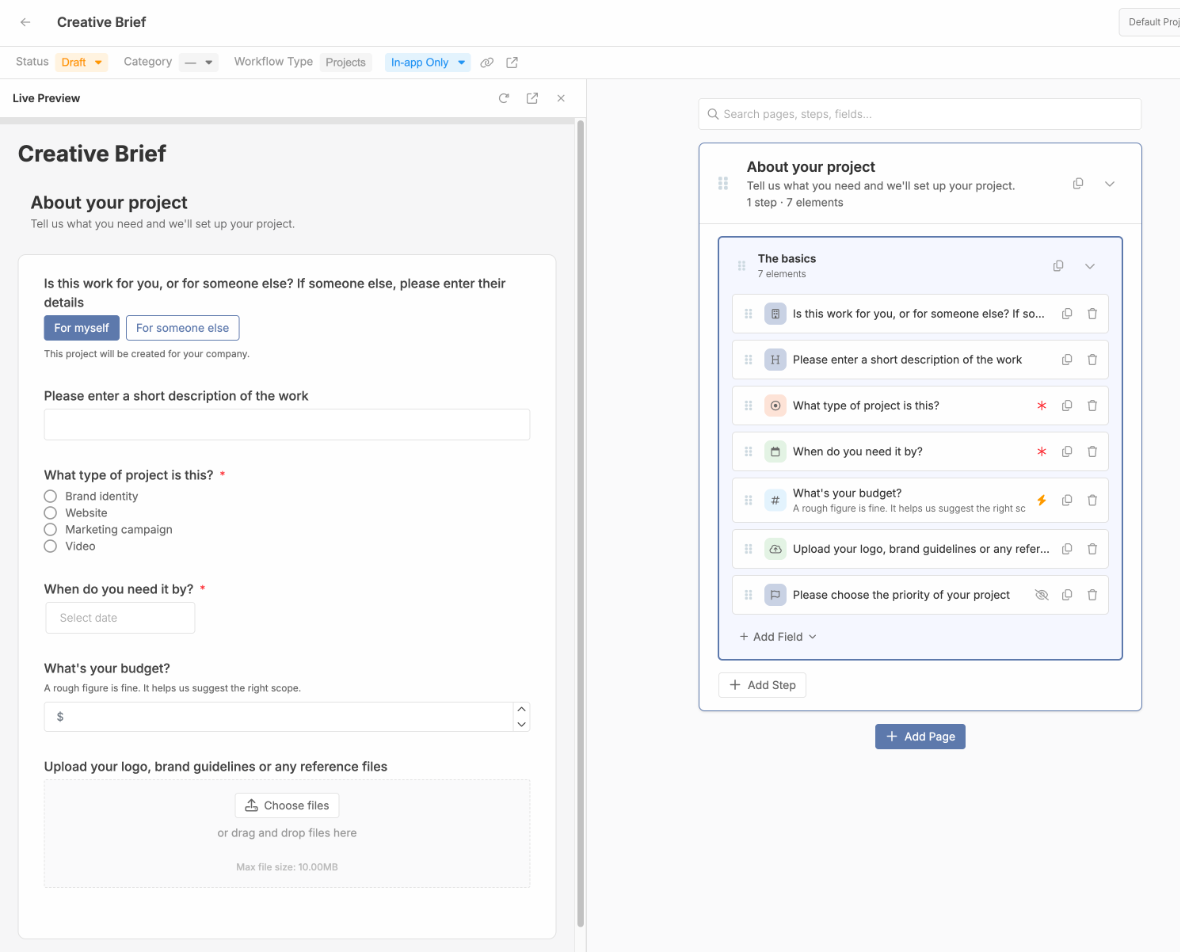
Forms are made of pages, steps and fields. A short form can live on one step. Add the questions from Step 1 by clicking a field type in the sidebar or dragging it into place: single choice for the project type, a date for the deadline, a number for the budget and a file upload for brand assets. Mark the essentials as required.
Add rules so the answers are usable
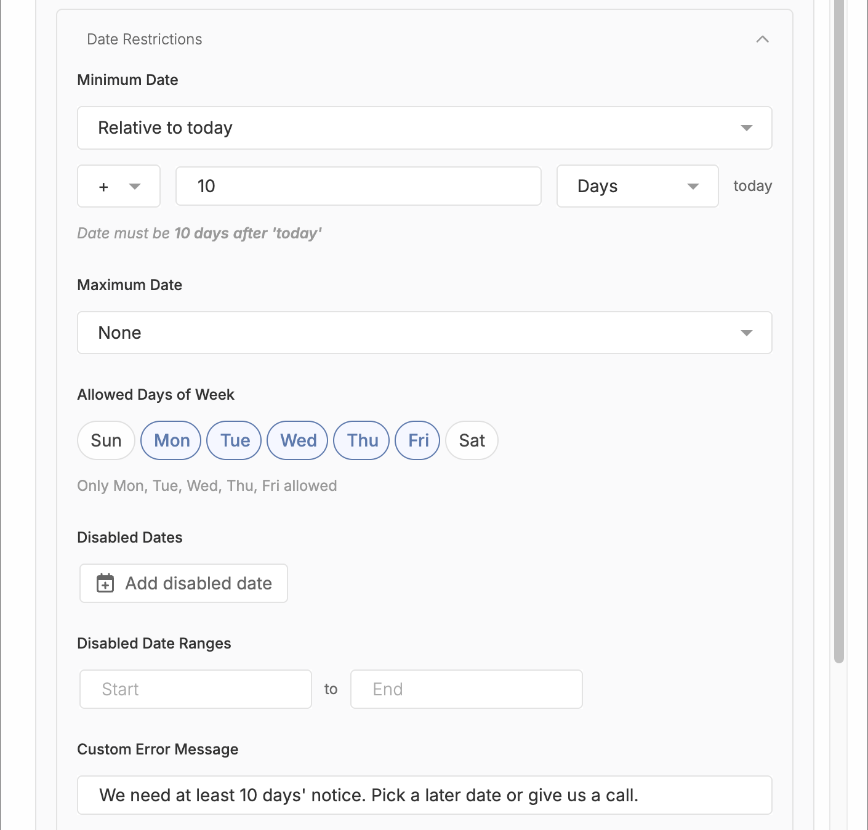
This is where a form beats an email. On the deadline question, set a minimum date of 10 days from today, block weekends, and write your own message for clients who need it sooner. Nobody can submit a brief that is due tomorrow by accident.
Let the answers do the admin
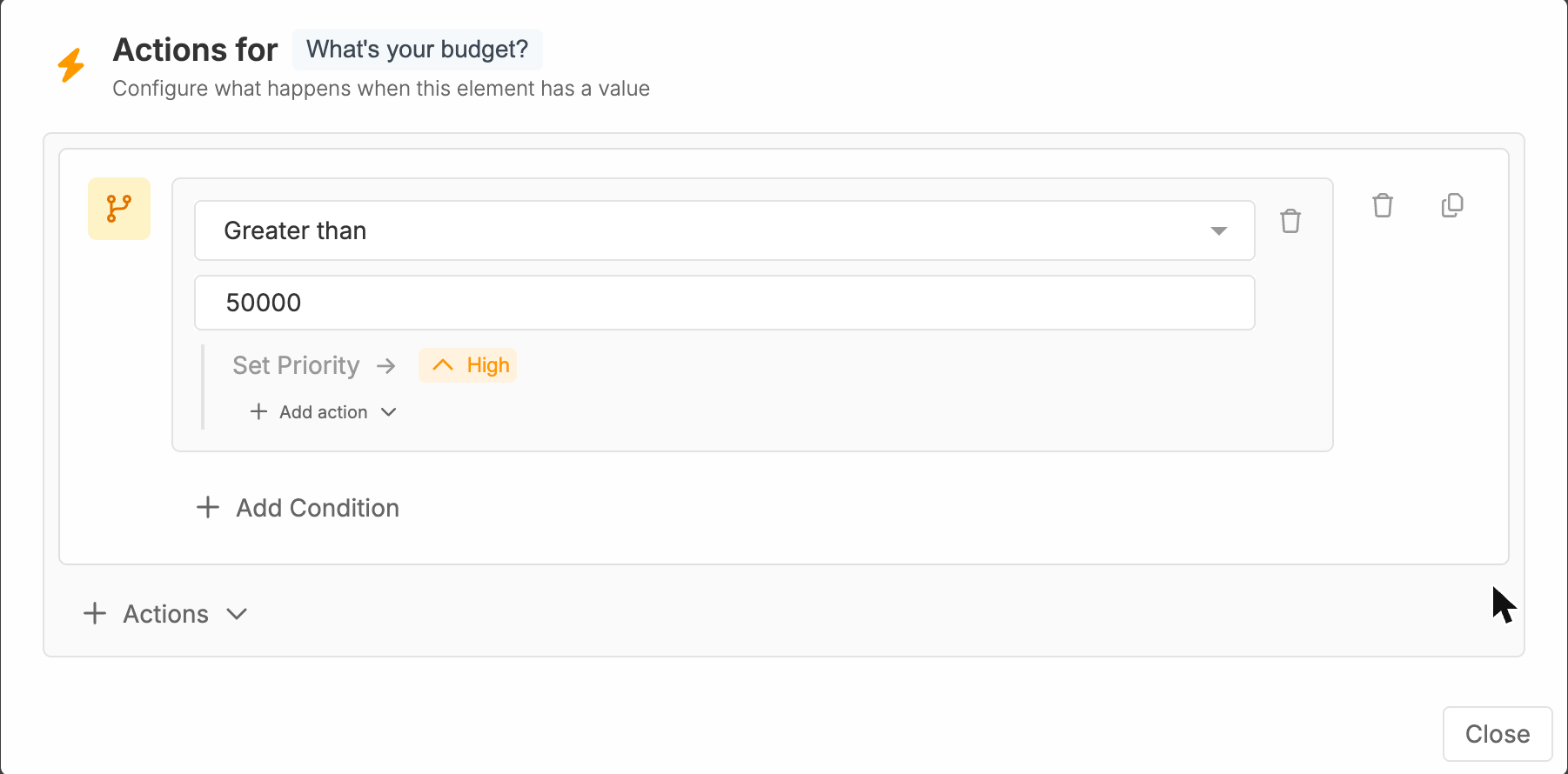
ProWorkflow fields such as Priority, Category, Manager and Work Stage map straight onto the project that the form creates. Add them as hidden fields and set them with actions, so the client never sees them. In this example, any brief with a budget over $50,000 is created as a High priority project.
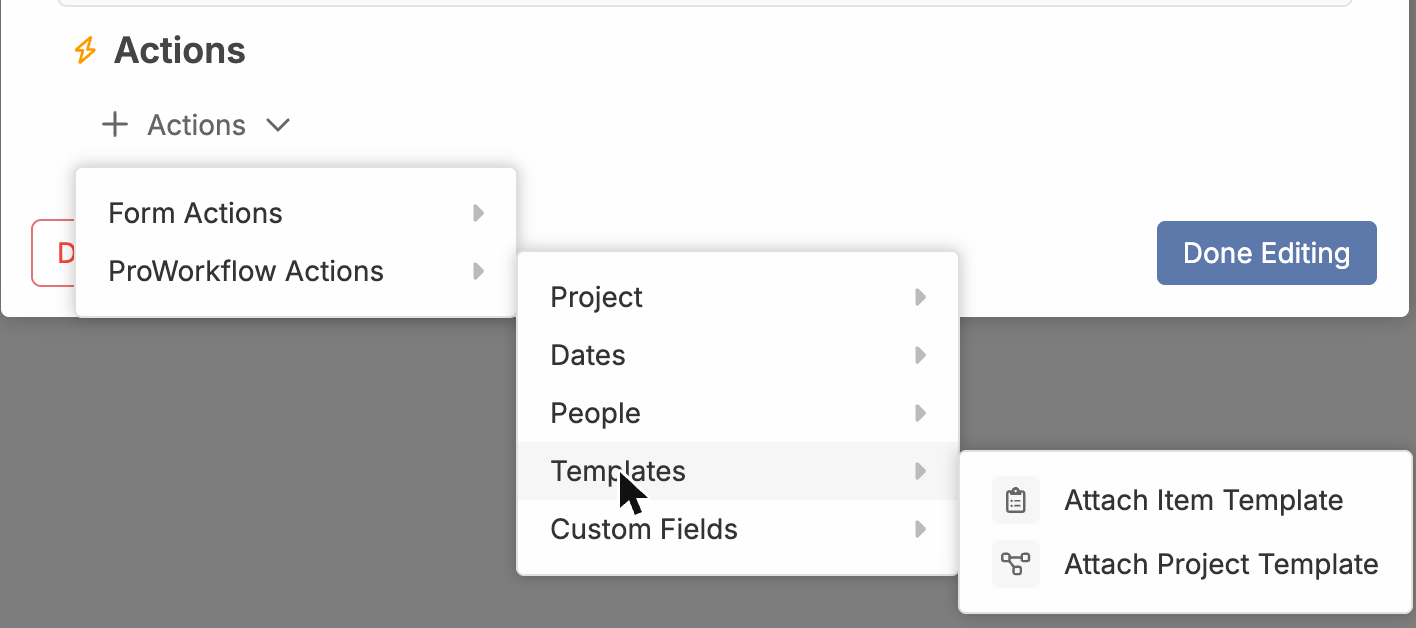
Actions can also set the project title, client, dates, people and tags, and attach a project template or item template. Pick Website as the project type, and the project can be created with your standard website phases and tasks already in place.
Preview it as your client will see it
Open Live Preview to see the form side by side with the builder. Test every path: each project type, a budget either side of your rule and a date that is too soon.
Step 4: Publish it where clients already are
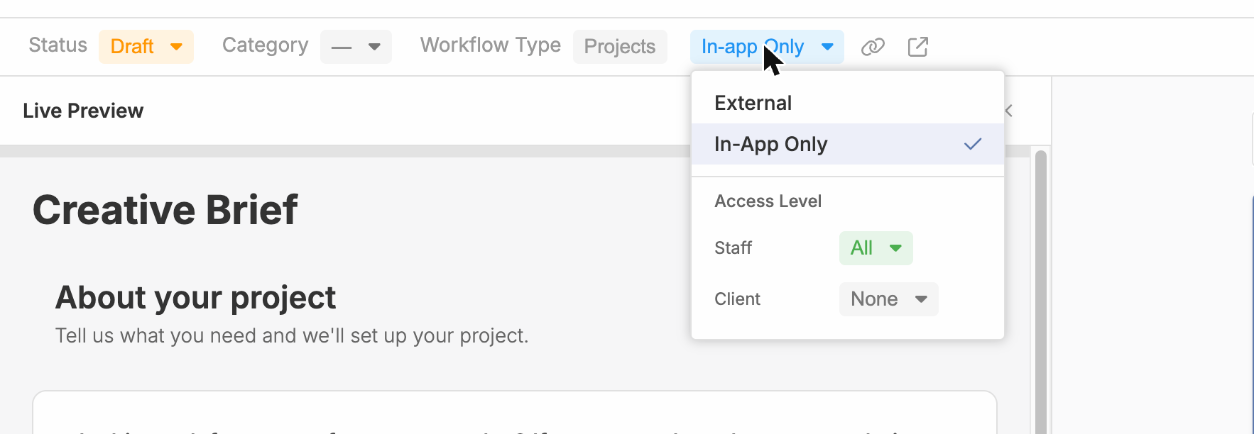
When the form is ready, set its status to Published and choose who can use it. External forms have a public link, so clients can fill them in without a ProWorkflow login. In-app forms are for your staff and, if you allow it, clients who log in.
Then put the link everywhere a new project might begin:
- A Start a project button on your website
- Your email signature and proposal templates
- Your reply to every new enquiry: “Fill this in and we will be in touch within a day”
- Account managers’ bookmarks, so they can capture a brief during a call
Files clients upload are attached to the project automatically, and on public forms, if a client closes the page halfway through, their answers are saved so they can come back to the same link and finish.
Step 5: Review and refine
After a month, look at what came in. Which questions are always left blank? Which answers did you still have to chase? Are projects reaching the right people? Tighten the form, then check again in a quarter. Intake forms get better with use.
See the whole process in 30 seconds
Mistakes to avoid
- Asking everything up front. Long forms get abandoned. Ask what you need to start, and collect the rest at kickoff.
- One form for every type of work. Use show and hide rules, or separate forms, so each client only sees questions that apply to them.
- Skipping the budget question. A rough range is enough, and it saves a lot of wasted proposals.
- Hiding the form. If the link lives in one email template, nobody will use it. Make it the default way in.
- Retyping submissions. If someone copies answers from a form into your project tool, the process is only half built.
Free intake form templates
Want a head start? We have put together three ready-to-copy intake forms, for a creative brief, a website brief and a consulting scope, with every question and the rules to add. Get them in 3 client intake form templates you can copy today.
FAQ
What is a client intake form?
A client intake form is a structured questionnaire a new or existing client fills in at the start of a project. It captures the scope, deadline, budget, contacts and files your team needs to begin.
What should a client intake form include?
At minimum: the client’s details, the type of work, a short description and goal, the deadline, a budget range and a place to upload existing files. Add questions only if you would act on the answer.
Can clients fill in the form without an account?
Yes. In ProWorkflow, forms set to External access have a public link that anyone can use without logging in.
What is the difference between an intake form and a project request?
An intake form creates a project as soon as it is submitted. A project request waits for someone on your team to approve it or decline it, and only becomes a project when it is approved.
Which ProWorkflow plan includes custom forms?
The Custom Form Builder and all custom form types are part of the Advanced plan.
How do I know if my intake process is working?
Count how many new projects still need follow-up emails before work can start. This is where a project management tool like ProWorkflow helps: every submission becomes a project with its answers, files and team attached, so you can see exactly what came in and base improvements on real data rather than assumptions.
Read the step-by-step help articles: How to use the Custom Form Builder, How to use Project Intake Forms and How to use Project Requests, or see everything on the Custom Forms feature page.