Connect ProWorkflow to Any App, AI Assistant or System in Minutes
Open API, secure OAuth and a ready-made MCP server. Set it up yourself and connect whatever you like.
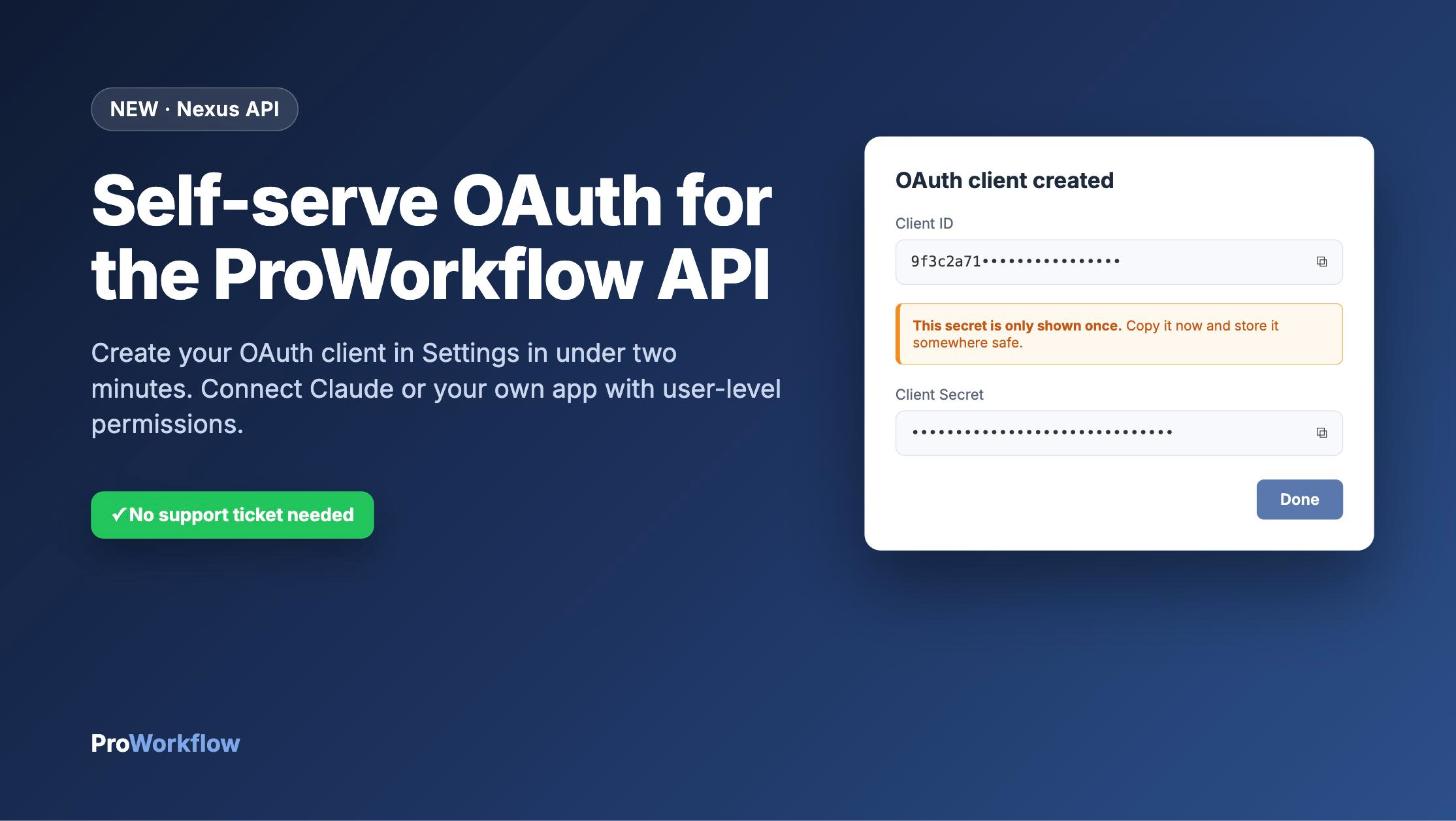
ProWorkflow is built to fit into the way your business already works: your accounting, your files, your internal tools and your AI assistants. With the Nexus API and self-serve OAuth, any super user can connect ProWorkflow to almost anything in about two minutes, straight from Settings.
In short
- Open by design: a full REST API, plus an MCP server for AI assistants like Claude.
- Do it yourself: create an OAuth client in Settings → Automation → OAuth Clients. No waiting on anyone.
- Secure by default: each person signs in as themselves, so apps only see what that person can see.
- Standard OAuth 2.0: works with Claude and any app or library that speaks OAuth.
One platform, your whole ecosystem
Most teams run on a stack, not a single tool. ProWorkflow already connects to Xero, QuickBooks Online, MYOB, Dropbox, Box, OneDrive, SharePoint and single sign-on providers. The Nexus API covers everything else: your CRM, your BI dashboards, your client portal or a tool you built last week.
OAuth is what makes that safe to roll out to a whole team.
Why OAuth
An API key is perfect for back-office automation, such as a nightly sync or a reporting export. It has access to the whole account, which is exactly what those jobs need.
When a real person is behind the request, you want something different. With OAuth, each person signs in with their own ProWorkflow login and the app gets a token that carries their permissions:
- They only see projects and divisions they already have access to.
- Sensitive fields such as rates and costs stay hidden if their role hides them.
- Every action is tied to a real user, not a shared key.
Everything in one place
Everything happens on the OAuth Clients page under Settings → Automation. ProWorkflow generates the client ID, secret and the rest of the configuration for you. You only say where to send people after they approve access. From there you can:
- Create your account’s OAuth client in one step
- Get a Client ID and Client Secret instantly
- Add the redirect URIs your app needs
- Edit the client or rotate the secret whenever you need to
Set it up in under two minutes
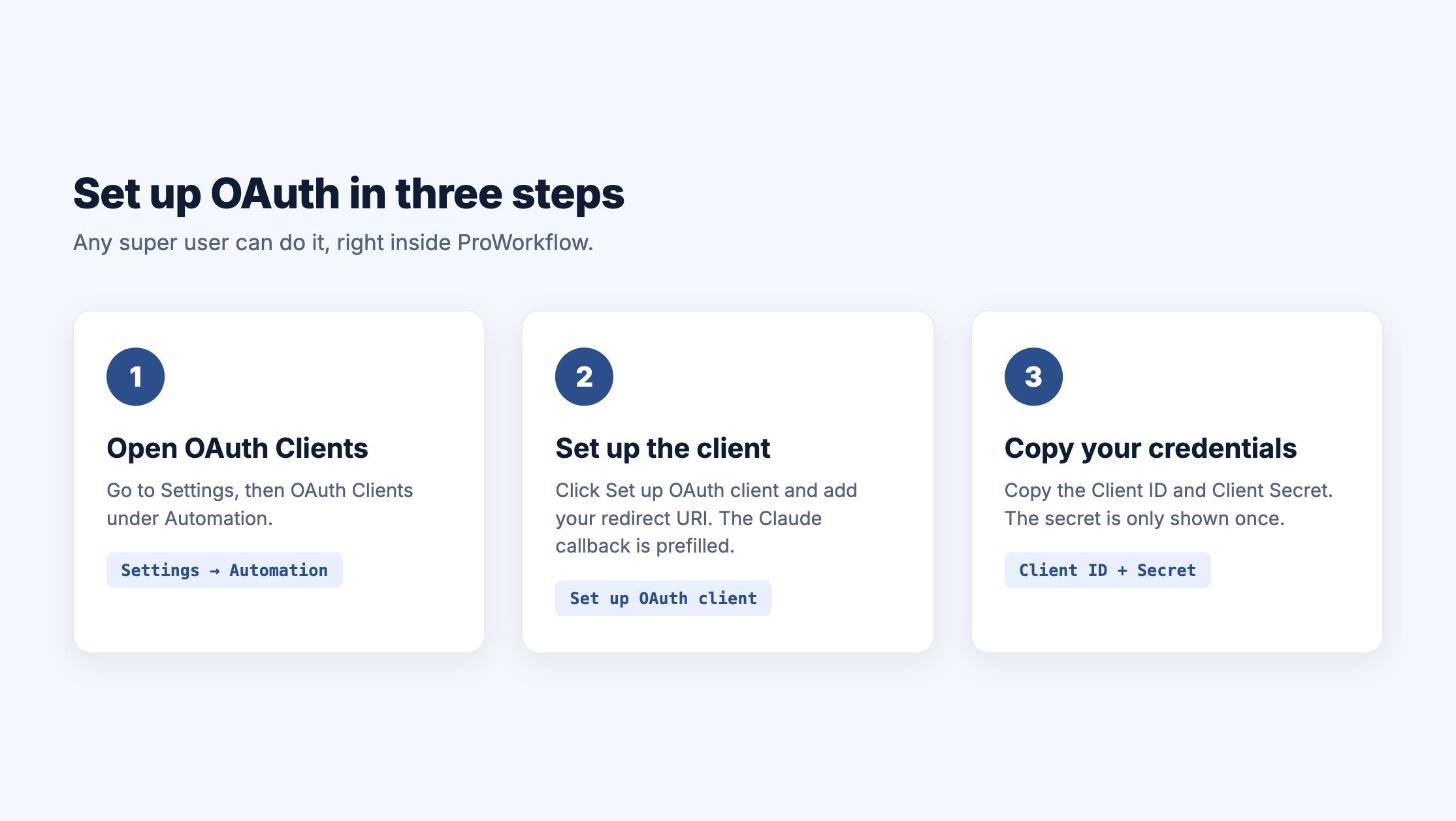
- In ProWorkflow, go to Settings → Automation → OAuth Clients.
- Click Set up OAuth client.
- Add your redirect URI. Connecting Claude? The Claude callback is already filled in for you.
- Add a short description, e.g. “Claude connector for the delivery team”.
- Click Create client and copy your Client ID and Client Secret straight away.
Tip: the Client Secret is shown once. Save it in your password manager. If it is ever lost, rotate it from the OAuth Clients page in a click.
Connect Claude to ProWorkflow
Our MCP server lets Claude work directly with your ProWorkflow data. Once your client exists:
- In Claude, open Settings → Connectors → Add custom connector.
- Enter the ProWorkflow MCP server URL:
https://api.proworkflow.com/api/v4/mcp - Under Advanced settings, paste your Client ID and Client Secret.
- Connect and sign in with your ProWorkflow login.
Now your team can ask Claude things like “Which of my projects are over budget this month?” or “Log two hours against the Acme rebrand”, and Claude only ever works within what that person is allowed to see and do.
Build your own integrations
The client follows the standard OAuth 2.0 authorization code flow, so any OAuth library will work.
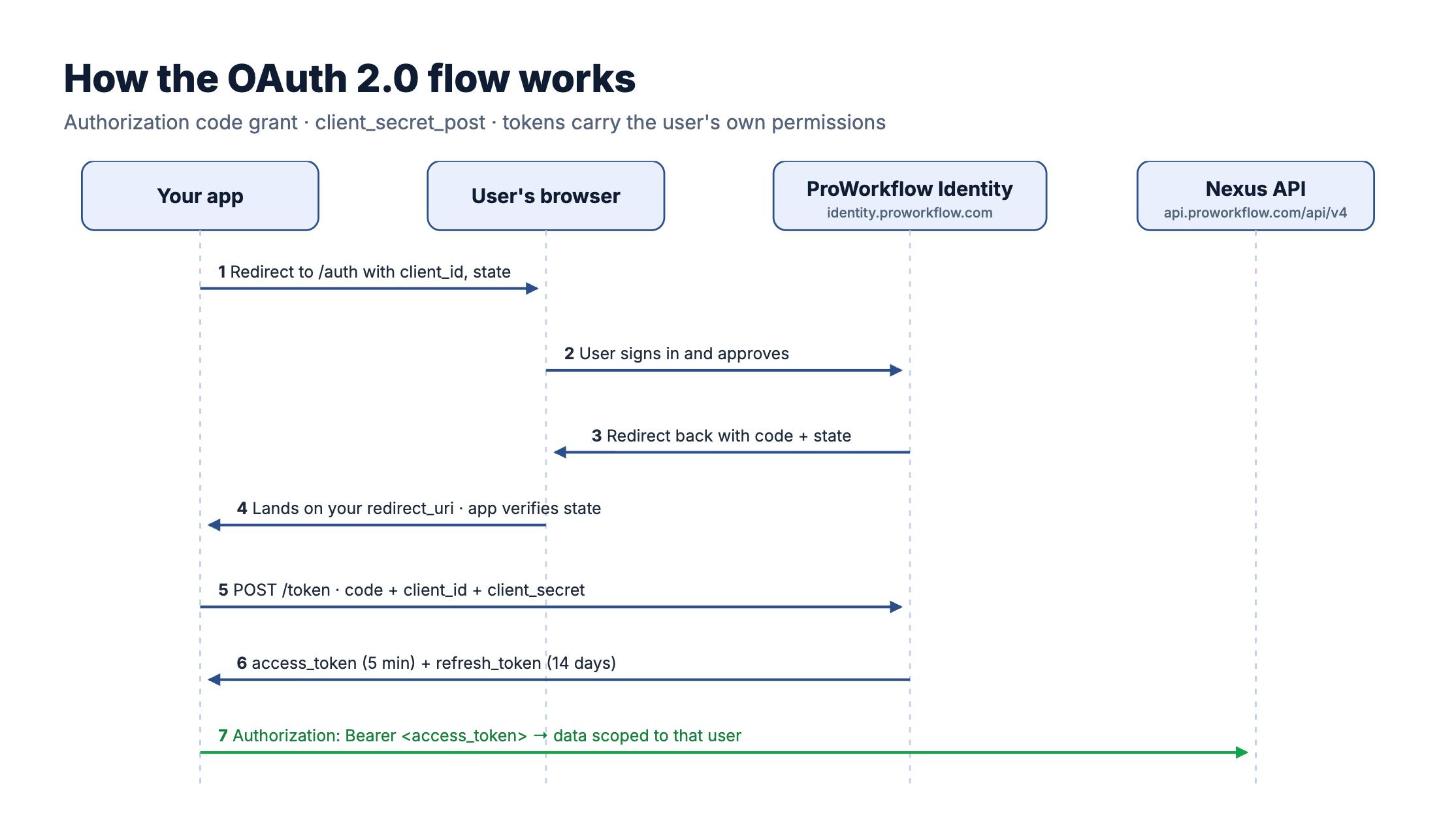
- Authorize:
https://identity.proworkflow.com/auth - Token:
https://identity.proworkflow.com/token - Call the API:
Authorization: Bearer <access_token> - Token lifetimes: access 5 minutes, refresh 14 days
# Exchange the authorization code for tokens
curl -X POST https://identity.proworkflow.com/token \
  -d grant_type=authorization_code \
  -d code=$CODE \
  -d redirect_uri=https://yourapp.com/oauth/callback \
  -d client_id=$CLIENT_ID \
  -d client_secret=$CLIENT_SECRET

# Call the API as that user
curl "https://api.proworkflow.com/api/v4/companies?fields=name,code&pagesize=10" \
  -H "Authorization: Bearer $ACCESS_TOKEN"
Full details, with request examples, are in the Authentication guide.
API key or OAuth?
API key
Account-level access
Best for server-to-server jobs that need the whole account, such as nightly syncs or reporting exports.
OAuth client
User-level access
Best whenever a real person is behind the request: AI assistants like Claude, internal tools and customer-facing apps.
Get started
Go to Settings → Automation → OAuth Clients in your account, or follow the step-by-step guide. New to ProWorkflow? Start a free 14-day trial and explore the Nexus API.