We’re rolling out an exciting new feature in ProWorkflow Nexus: new and improved Saved Views! If you’ve been using Nexus for a while you’ll probably be familiar with our ability to save Filters, or to save columns. We’ve now combined saved Filters and saved Columns into Saved Views which cover both, and we’re introducing even more options to allow you to share them with your team, set them as default for yourself or for your whole team, and customize your sidebar menu links.
Filters and Columns Saved in One Centralized View
Now you can make selections in your Filters and Columns, and then instead of saving both separately you can save your View. This allows you to easily access and utilize those selections without having to individually re-choose your Filters and Columns., saving you time and refining the method by which views are changed:

Set your Default View
When saving a View, you can elect to set it as the Default View for that table. That will mean any time you view that type of page your default filters and columns are set to the view you’ve customized rather than our system defaults. You can set a Default View for your Project Details pages, your Projects List pages, and your Items List pages:

Share View with Your Team
With our new Saved Views options, you can choose to save a view as “Public” which will allow other Staff users on your account to access and use your view, so you can help your team easily view the info you want them to have at their fingertips:

If you enable this and elect to make a view a Default View, then this will be the Default View for all Staff users on your account, unless they have their own custom default view set for this table.
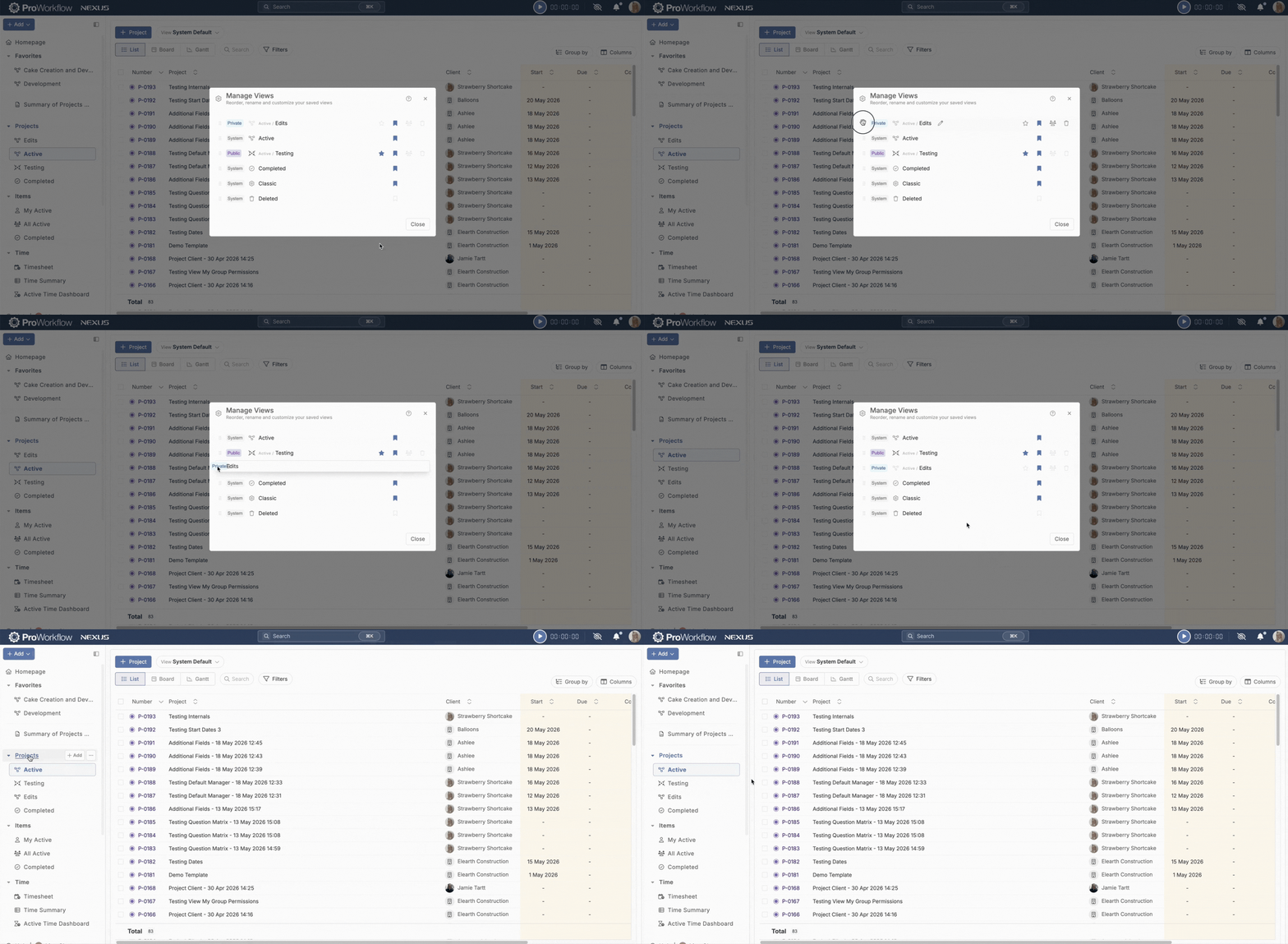
Bookmark, Reorder, and Customize Icons
We’ve added new functionality that allows you to “bookmark” your saved views for the Projects and Items list pages which allows you to add them to the side-bar navigation. You can even reorder how these views are listed, change the icon associated to the views, and remove system views from the nav if you’re not using them. We want ProWorkflow to be customizable to suit your preferences!

Get These Features by Upgrading to ProWorkflow Nexus Today!
Whether you are an existing Classic customer who is looking to convert to Nexus, or you’re a new prospective client who wants to start a subscription with us, you can start using Nexus today to take advantage of this exciting new feature. Existing clients please reach out to our Support team at [email protected] to get Nexus enabled for your account and start the migration process. New clients please start a trial account or contact our Sales team at [email protected].