How to Stop Over-Allocating Your Team
Work out real capacity, see everyone’s load side by side, and fix it before the week starts.
Over-allocation rarely looks like a crisis on the day it happens. Someone has a few more tasks than hours, a deadline moves, a client adds a round of changes. Two weeks later the same people are working late, quality slips, and the hours you planned no longer match the hours you are using.
This guide shows how to measure your team’s real capacity, spot over-allocation before it bites, and fix it without missing deadlines.
The quick answer
A person is over-allocated when the hours assigned to them in a period are more than the hours they can actually work in it.
To stop it, work out each person’s real weekly capacity, plan work against that number rather than a full 40 hours, look at everyone’s load side by side every week, and move or reschedule work before the week starts, not halfway through it.
Step 1: Work out real capacity, not contracted hours
A 40-hour contract is not 40 hours of project time. Take out the things that happen every week regardless of projects:
| Hours a week | |
|---|---|
| Contracted hours | 40 |
| Internal meetings and admin | − 4 |
| Email, Slack and context switching | − 3 |
| Training, sales support and internal work | − 3 |
| Plannable project time | 30 |
So in this example, plan about 30 hours a week of project work per person, or roughly 75% of their contracted hours. Your number may be higher or lower; the point is to use one that reflects how your team actually works. The same figure drives your pricing, which is why it also appears in the true cost of an employee per hour.
Also take out leave and public holidays for the weeks they fall in. A person on leave for two days has 18 plannable hours that week, not 30.
Step 2: Put an hours estimate on every task
You cannot see over-allocation if tasks have no hours. Give every task an allocated time, even a rough one, and assign it to a person with a start and due date. Unassigned or unestimated work is invisible load, and it is usually what tips people over.
Step 3: Look at everyone’s week side by side
Check load across the whole team, not project by project. A project manager looking at one project sees a reasonable plan. Looking across all projects, the same designer may have 52 hours of work due this week.
A simple traffic-light rule helps:
| Load vs capacity | Status | What to do |
|---|---|---|
| Under 80% | Spare capacity | Pull work forward or take on new work |
| 80% to 100% | Fully booked | Protect it; avoid adding more |
| Over 100% | Over-allocated | Move, reassign or reschedule this week |
Step 4: Fix it before the week starts
Once you can see who is over, there are only a few levers:
- Reassign tasks to someone with the right skills and spare capacity.
- Reschedule work with flexible dates to a lighter week.
- Re-scope with the client if the work has grown beyond what was quoted.
- Bring in help, a contractor or a part-timer, if the whole team is over for several weeks running.
Do this in a short weekly planning session, ideally on Friday or Monday morning, using the coming week’s load.
Step 5: Compare planned with actual
Planning only works if the estimates are close. Each week, compare the hours allocated to finished tasks with the hours logged. If tasks consistently take 30% longer than planned, your team is over-allocated even when the schedule says it is not. Fix the estimates, not just the schedule. The budget vs actual guide shows the same check from the profit side.
Warning signs
- The same two or three people are always the busiest on every project.
- Logged hours regularly exceed allocated hours on finished tasks.
- Deadlines are met, but only with evening and weekend work.
- New projects are accepted before anyone checks who will do the work.
Plan workload in ProWorkflow
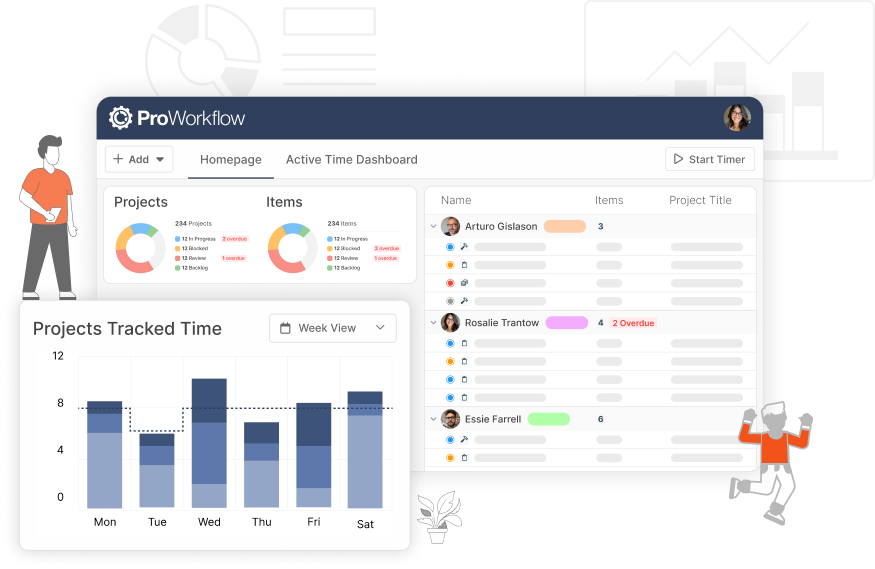
In ProWorkflow, every task has the people assigned to it, the hours allocated to each of them, and a start and due date. That gives you an hours estimate on all of your work, which is the foundation for Steps 2 and 3 above.
Filter your task list by person to see everything assigned to them across all projects, and the total hours that adds up to. If that total is more than their real capacity for the period, move, reassign or reschedule before the week starts.
Because your team logs time against the same tasks, ProWorkflow also shows allocated hours against time spent on every task and project. That is the Step 5 check, done for you, so your next estimates are based on how long work really takes. Read more about resource planning and resource management in ProWorkflow.
FAQ
What is over-allocation in project management?
It is when a person has more work assigned in a period than they have hours to do it. It usually builds up across several projects at once, which is why it is hard to see from inside any one project.
How many hours a week should I plan per person?
Plan against real capacity, not contracted hours. For many agencies and consultancies that is around 75% to 80% of contracted time once meetings, admin and internal work are taken out. Once work is underway, measure it with billable utilisation.
How often should I check team capacity?
Weekly, before the week starts, with a quick look at the following two to four weeks for anything already stacking up.
How do I know if my estimates are right?
Compare allocated hours with logged hours on completed tasks. This is where a project management tool like ProWorkflow helps: every hour is logged against a task, so you can see how long work really takes and plan the next project on accurate data instead of assumptions.