With our announcement of the new Nexus API we introduced you to our market leading API; the most comprehensive Rest API on the market.
In this blog we’re highlighting one of the most exciting new features of our new ProWorkflow Nexus API: the Model Context Protocol server that exposes ProWorkflow resources as tools for AI assistants. For our full MCP documentation including a library of available calls, please see our documentation here.
What is MCP?
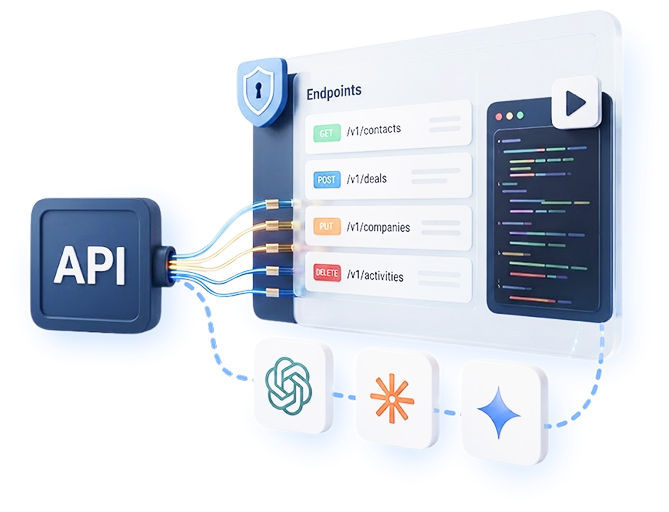
The Model Context Protocol (MCP) is an open standard for connecting AI assistants to external tools and data sources. This server exposes ProWorkflow’s core resources — companies, contacts, projects, items, phases, invoices, quotes, time entries, time allocations, and messages — as callable tools.
Available Resources
- Companies — Client, contractor, staff organizations
- Contacts — People associated with companies
- Projects — Project records with team assignments and scheduling
- Items — Project tasks with assignments, dates, and financials
- Phases — Project phase hierarchy and rollup records
- Invoices — Invoice records with payment tracking
- Quotes — Quote/estimate records with approval status
- Time — Time tracking entries against project items
- Time Allocations — Planned/allocated time linked to items and contacts
- Messages — Project messages and communication
- Custom Fields — Project custom field definitions and dropdown options

How it Works
The MCP server uses JSON-RPC 2.0 over Streamable HTTP. All communication happens via POST /api/v4/mcp.

Step 1: Initialize
Send an initialize request to establish the session. The server responds with its capabilities and protocol version.
Step 2: List Tools
Send tools/list to discover all available tools and their input schemas. Each tool has a name, description, and JSON Schema for its parameters.
Step 3: Call Tools
Send tools/call with the tool name and arguments. The server executes the operation against the ProWorkflow REST API and returns the result.
Session Headers
After initialization, the server returns an mcp-session-id header. Include this header in subsequent requests to maintain the session.

Options for Authentication
We’ve also introduced a new way to authenticate – while you can still use your API key (which you can find in your Client Area), you can also contact Support to set up JWT Bearer Tokens: pass a JWT in the Authorization header. This gives you user-level access — permissions, division scope, and sensitive field visibility all apply based on the user’s settings.
Requires an OAuth app with a client secret. Contact [email protected] to get set up.
API Key vs JWT
API Key — account-level access, bypasses all permission checks, all sensitive fields visible, all divisions accessible.
JWT — user-level access, respects user permissions, may hide sensitive fields, scoped to the user’s division.
Authentication Scope
Credentials are captured when the MCP session is initialized and used for all subsequent tool calls. The same permission and division isolation rules from the REST API apply.

Get Started with the ProWorkflow Nexus MCP Server Today!
Whether you’re converting from Classic to Nexus, or you’ve been waiting to dive into API, now is the perfect time to get started with ProWorkflow! Existing clients please reach out to our Support team at [email protected] with any questions. New clients please start a trial account or contact our Sales team at [email protected] for more information!